A QR code looks simple when it is finished: a square pattern, a scan, and a destination. The planning behind it is where most of the useful decisions happen.
If the destination is wrong, the code is useless. If the contrast is weak, people may not be able to scan it. If the code is printed without a clear label, users may not know why they should bother. If you create 50 codes for an event or campaign without a tidy payload list, fixing one mistake later becomes painful.
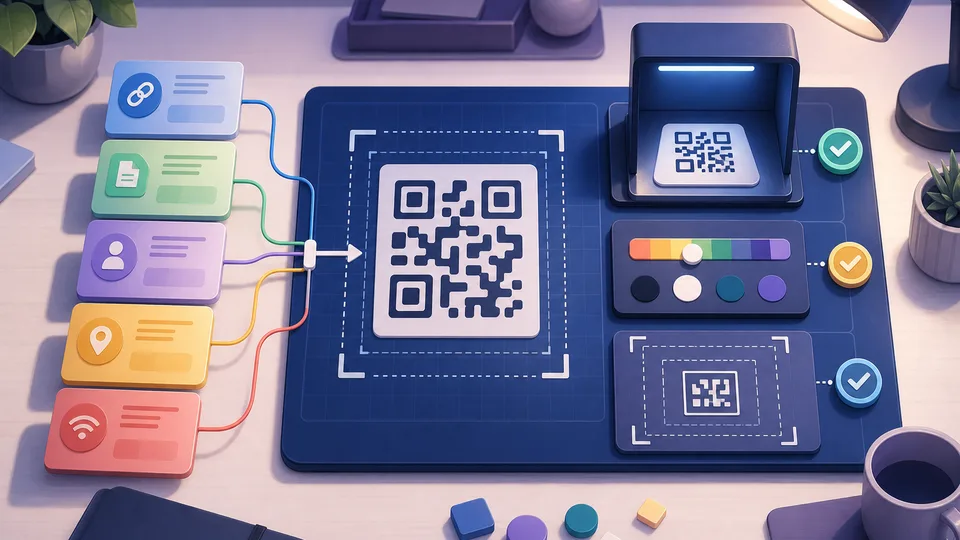
The QR Code Customizer Calculator is designed for that planning stage. It helps you prepare URL, text, email, phone, SMS, and vCard-style payloads, compare single and bulk entries, plan colour choices, and export a CSV before you send the final payloads to a production QR renderer.
Start with the job the QR code has to do
Before thinking about colours or placement, decide what the scan should actually do. A QR code can point to a web page, open a drafted email, start a phone call, prepare an SMS message, store contact details, or share plain text. Those use cases are not interchangeable.
A campaign poster usually needs a URL. A product insert might need a support page. A conference badge may need a vCard-style contact payload. A venue table card might need a menu page or a feedback form. A classroom handout may need a short text instruction or resource link.
The payload type matters because it controls what the scanner app tries to do after the scan. If the user expects a web page but the code opens an email draft, the experience feels broken even if the QR code technically works.
Keep the destination stable
The safest QR campaigns usually point to a destination you control. A printed code can live for months or years. If it points directly to a temporary file, a third-party form, or a campaign URL that later changes, the print material can become stale.
For important campaigns, it is often better to point the QR code at a stable landing page on a domain you control. That page can then route users to the current offer, booking form, document, or resource. This gives you more flexibility if the final destination changes after the code has already been printed.
Use the URL Parser if you need to inspect a campaign URL before turning it into a QR payload. It can help you see the domain, path, query parameters, and tracking fragments more clearly. For encoded links, the URL Encoder/Decoder is useful before you copy the final value into a payload list.
Plan labels, not just patterns
A QR code without context asks the user to trust a mystery square. That is not ideal. The label beside the code should explain the action in plain language: download the guide, join the mailing list, open the menu, save the contact, book a slot, or view the product page.
The label does not need to be long. It just needs to make the scan feel intentional. This is especially important in public spaces, printed leaflets, packaging, events, and internal workplace posters where people see several codes competing for attention.
For bulk QR planning, labels also protect you from confusing your own codes. A spreadsheet row called "summer flyer north entrance" is much easier to check than a row containing only a long URL. The calculator's CSV export is useful here because it gives you a payload planning file you can review before production.
Do not make colour the enemy of scanning
Branded QR codes can look better than plain black-and-white squares, but colour choices still need discipline. Low contrast makes scanning harder. Busy backgrounds make the code harder to isolate. Reversing colours can work in some contexts, but it increases the need for careful testing.
As a planning rule, keep the foreground and background clearly separated. Avoid putting QR patterns over photos, gradients, textured materials, or low-contrast brand colours unless you have tested the exact version in the real setting.
If the QR code will sit near text, buttons, or brand colours, the WCAG Contrast Checker can help you think about foreground and background contrast more deliberately. It does not certify QR scan performance, but it is a useful warning system when a colour pair is already hard to read.
Leave enough quiet zone
The quiet zone is the empty margin around the QR pattern. It helps scanning software tell where the code starts and ends. If the code is pushed tightly against a border, photo, logo, or other design element, scanners may struggle.
This is one of the easiest mistakes to make when a QR code is dropped into a busy design. The designer sees unused space and crops closer. The scanner sees a pattern with less separation from its surroundings.
When planning a QR code, treat the quiet zone as part of the code, not as optional decoration. If you need the artwork to fit into a small area, reduce the surrounding design before sacrificing the margin.
Separate WiFi QR codes from general QR payloads
WiFi QR codes are a special case. They use a network payload format with SSID, password, and encryption fields. That is different from a campaign URL, contact card, email prompt, or SMS message.
If the job is to share network access, use the WiFi QR Code Generator instead of a general QR payload planner. It is built around the WiFi-specific format, which keeps the input decisions clearer.
Bulk QR codes need a review workflow
Bulk QR work is where small mistakes multiply. One typo in a URL, one wrong phone number, or one mismatched label can create a whole batch of bad codes.
Before generating final artwork, review the payload list in a simple sequence:
- Check that each row has a clear label.
- Confirm that the payload type matches the intended action.
- Open or test every destination that points to a web page.
- Make sure campaign URLs point to the right domain.
- Keep a copy of the payload CSV for future maintenance.
That last point matters more than it first appears. If someone asks which code was used on a poster, event sign, product insert, or mailer, the CSV gives you a record to work from. Without it, you may be left guessing from the artwork file alone.
Test the real version, not the ideal version
A QR code can work on a bright monitor and fail on the printed material. Distance, glare, paper texture, lighting, phone camera quality, print size, and background colour can all change the result.
Test the actual size, colour, and placement whenever possible. If it will be scanned from a wall, test it from a realistic distance. If it will be used on packaging, test it on the packaging. If it will be scanned outdoors, test it in the expected lighting.
The QR Code Customizer Calculator is a planning tool, not a scanner-certified production QR generator. Use it to prepare the payloads, colour assumptions, quiet-zone notes, and export file. Then use a production renderer and scan-test the final image before publishing or printing it.
What to do next
Use the QR Code Customizer Calculator when you need to prepare QR payloads cleanly, especially for campaigns, events, contact cards, or bulk lists. Use the WiFi QR Code Generator when the job is specifically network sharing.
If your QR code points to a web page, check the destination first. A clear payload, a stable URL, a readable design, and a simple test workflow will do more for scan success than decorative styling ever will.
FAQ
Can a coloured QR code still work?
Yes, but only if the foreground and background stay clearly separated and the final code is tested. Low-contrast colours, textured backgrounds, and busy artwork can make scanning less reliable.
Should I use a short URL in a QR code?
A shorter URL can make the QR pattern less dense, but it should still be a destination you trust and control. Do not use a short link just to hide a messy or uncertain destination.
What is the quiet zone around a QR code?
The quiet zone is the empty margin around the QR pattern. It helps scanners identify the code boundary. Cropping too close to the pattern can make the code harder to scan.
Is the QR Code Customizer Calculator a production QR generator?
No. It is a planning tool for payloads, colour assumptions, quiet-zone notes, and CSV export. You should still create and scan-test the final production QR artwork before publishing it.
When should I use the WiFi QR generator instead?
Use the WiFi QR generator when the goal is to share network access. WiFi QR codes use a specific payload format for network name, password, and encryption type.